Storyboard Designer Environment
Storyboard Designer is a design and development environment for creating full-screen, deployment-ready applications for embedded platforms using the Storyboard Embedded Engine.
Using Storyboard Designer designers incorporate graphic content and artwork directly into the application design process. The imported images (gif, jpeg, png, psd) are used as control surfaces that application developers can bind action behavior to, based on externally generated input events.
Graphic designers already have a set of design tools for creating and manipulating images. Storyboard Designer is not meant as a replacement for these tools, but is intended to provide a binding environment where static images can be animated into multi-screen applications by allowing graphics designers to easily import their work into an application design.
Storyboard Designer is intended for use by both graphic designers and embedded applications developers and is based on the extensible Eclipse framework (www.eclipse.org).
Embedded software developers typically work in C or C++ development environments. Storyboard Designer integrates into the CDT, the most common Eclipse based embedded development environment, so application user interface development can easily be done in parallel with other embedded software development.
Storyboard Designer Workbench
When Storyboard Designer starts, the user is presented with an initial empty working environment for application development as shown in the following image. Storyboard Designer presents the user with a main editing area that displays a visual, WYSIWYG, representation of the application screens as they are being developed. The editor is the primary interface for development and design of the application. The editor is opened, like any other standard editor in the Eclipse environment, by double-clicking on any Storyboard Designer file, or right-clicking and selecting File > Open.
The editor area is surrounded by dockable views that present editing information to the user as the application is being developed. Many of these views, such as the layer or application view, provide information relative to the selection in the current editor. Additional views can be added into the current display by selecting Window > Show View and then selecting the additional views.
The selection of views and their arrangement around the editor area is called a perspective. The default Storyboard Designer perspective layout can be customized by dragging, resizing, and re-docking views in an arrangement that is convenient to individual developer or designer workflows. It is always possible to reset the layout of the perspective to its default by selecting Window > Reset Perspective from the main menu.
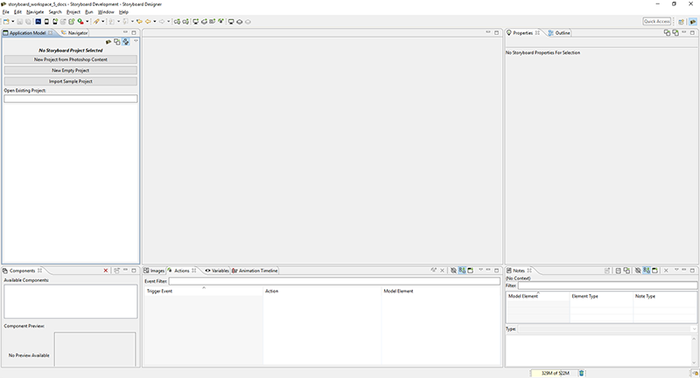
For more details on configuring the workbench refer to Help > Help Contents > Workbench User's Guide
Eclipse is an extensible framework with a rich set of plugins available from multiple software vendors. Among other integrations, team collaboration plugins for GIT, Mercurial, ClearCase, SVN and CVS are all readily available. The Eclipse marketplace (marketplace.eclipse.org) contains a comprehensive listing of available plugins and extensions.
Anatomy of a Storyboard Designer Project
Storyboard Designer manages its projects within a filesystem directory referred to as a workspace. The workspace is used to limit the scope of file resources to just those files in the host filesystem that are relevant for the application design. Storyboard Designer projects correspond to the root directories contained within the workspace directory.
When a new Storyboard project is created, using File > New > Storyboard Application…, it creates an initial project structure in the workspace that contains several default directories in addition to the main Storyboard application design file.
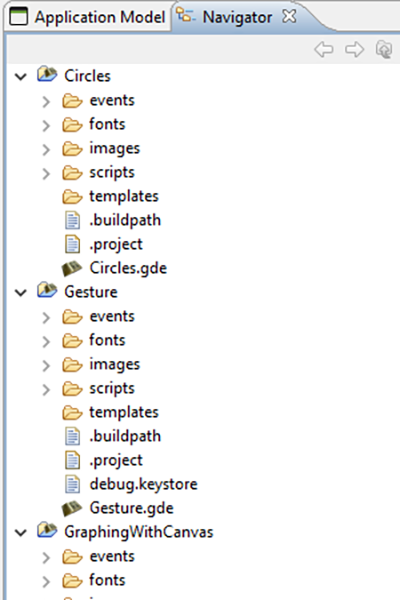
The images, fonts, scripts, templates and events directories are automatically scanned for content and that content is integrated into the application designer tools. In order to import content from the filesystem into these directories, you can use the File > Import > General > File System option or the standard system copy and paste or drag and drop from other applications.
Each directory scans for a different type of content:
events
This directory and its subdirectories are scanned for event definition
files, which are text files that have an extension of .evt. The events
contained in the event definition files are automatically included in
the action trigger event list. Event definitions are automatically
managed by the Designer framework when new events are added or removed
using the New Action Wizard.
fonts
This directory and its subdirectories are scanned for TrueType™ font
files. In general, these font files have the extension of .ttf. The
fonts discovered are automatically added to the list of available fonts
in the font selection dialog. OpenType™ and TrueType container formats
are not supported by Storyboard at this time.
images
This directory and its subdirectories are scanned for image file
content. Supported image file formats include gif, jpeg, bmp and png
files. Photoshop™ PSD files can be imported directly as an application
or as the component images using the File
> Import >
Storyboard Development >
Photoshop PSD File menu option.
scripts
This directory is scanned for Lua
(www.lua.org) scripts which have the extension of
.lua. The functions that are found in these scripts are automatically
added to the list of available functions presented in the Lua action
argument configuration.
templates
This directory is scanned for Storyboard Designer template files. Valid
templates are automatically added to the list of available templates or
new actions. For more details on creating and working with templates,
refer to the document sections Working With Templates and User Defined
Actions.
As changes are made in the filesystem, the workspace should refresh automatically and the changes are reflected in the Storyboard Designer user interface. An automatic refresh may be delayed due to system activity and can be forced at any time by selecting a project or file in the Navigator view and selecting Refresh from the right-click menu.
Editor
The Storyboard Designer editor is the central location for all design
Utilities
Storyboard Designer offers many features to help you efficiently develop
Views
Storyboard Designer's editor contains a number of dockable views that